Intro to Computer Science
Intro to Computer Science gave me hands-on experience with picture editing, Python programming, video game design, and creating a short film. The class helped me build creative and technical skills while exploring different areas of computer technology.
Python Programming


This semester in Intro to Computer Science (ICS), we started learning Python, one of the most popular and beginner-friendly programming languages out there. We used CodeSandbox to write and run our code in the cloud, which made it super easy to test and see our work in action—no setup needed!
Let me walk you through the key concepts we covered:
🖨️ 1. Print Functions – Talking to the User
We started with print() functions. Think of this as your program's way of speaking. If you want to show the user a message or some results, you use print().
Example: print("Welcome to my program!")
This prints the message to the screen. It’s simple but powerful—great for testing and guiding users.
📦 2. Variables – Storing Information
Next up: variables. These are like labeled boxes where you store information you might need later. Variables can store different data types:
Common Types of Variables:
-
String – Text, like "Hello"
👉 Example: name = "Alex" -
Integer – Whole numbers, like 82
👉 Example: score = 82 -
Float – Numbers with decimals, like 5.11
👉 Example: height = 5.11 -
Boolean – Either True or False
👉 Example: is_logged_in = True
Once you assign a value to a variable, it keeps that value until you change it.
🔀 3. Conditional Statements – Making Decisions
Then we learned how to make decisions in our code using conditional statements like if, elif (which means “else if”), and else.
These check if something is true, and then run code based on the result.
Example:
if score > 90:
print("Great job!")
elif score > 70:
print("Nice work!")
else:
print("Keep trying!")
These are super useful in real life, like checking if a user is logged in, if a button is clicked, or even turning on a smart light!
📌 You can find cool examples of this on my website under the “Conditional Statements” button.
🔁 4. While Loops – Repeating Until It’s Time to Stop
Finally, we tackled while loops, which let a program run a block of code over and over while a condition is true.
Example:
while guess != secret_number:
guess = int(input("Try again: "))
This is perfect for games or situations where you want to keep checking something until a user gets it right or a task is complete.
💡 My Guessing Game project is a great example of this—feel free to check it out!
💬 Final Thoughts
Learning Python has been both fun and eye-opening. It’s cool to see how even the simplest tools—like variables, conditionals, and loops—can be combined to create smart, interactive programs. I'm excited to keep exploring and build even more complex projects in the future!
Vlog explaining Python programs
Short Film


Music Used:
Speech Used:
Script that I used with DaVinci:


Video Converter Used:


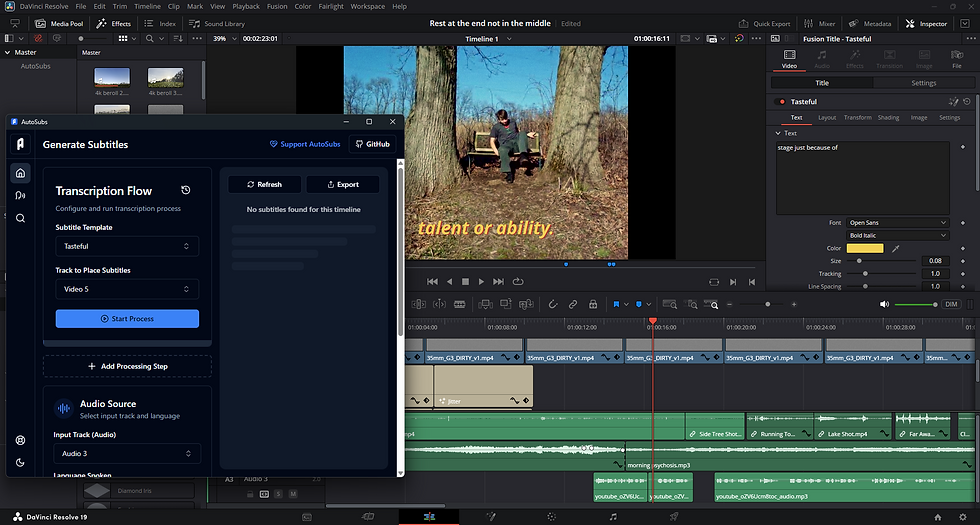

🎬 Making a Short Film in Intro to Computer Science
This semester in Intro to Computer Science (ICS), we explored more than just code—we also got hands-on with video editing by creating our very own short films! A short film is like a mini-movie: it can be any genre or topic and usually runs 40 minutes or less.
Let me walk you through the key parts of the process:
🌟 1. Transitions – Connecting Scenes Smoothly
Even though I didn’t use a lot of transitions, I did use one called Brightness Flash. Think of it like the flash on a camera—there’s a quick burst of light that leads right into the next scene. You can spot this effect in the intro of my film. It’s a simple but powerful way to keep the flow interesting.
🧵 2. Timeline – The Heart of the Project
I chose to use just one timeline for my entire film. You can use multiple, but I found one to be more effective for my workflow. The timeline is where everything comes together: video clips, audio, text, effects—you name it. Whatever’s on the timeline is what the audience will see.
🗂️ 3. File Management – Staying Organized
Good organization was critical. If a file went missing or got corrupted, you could lose a whole scene and have to start over. Here’s how we kept things tidy:
-
RAW Folder – Original files like video and audio.
-
Editing Folder – Copies of the RAW files we worked on.
-
DaVinci Resolve Folder – Where our project files were saved, including backups.
This system helped us avoid disasters and stay efficient during editing.
💬 Final Thoughts
Working on this short film was a cool way to learn new skills outside of traditional programming. It taught me a lot about storytelling, file organization, and the importance of planning. I’m proud of how it turned out—and I’m looking forward to creating even more polished projects in the future!
Vlog
how did
I make it
Picture Editing
My Final Movie Poster


🖼️ Designing a Movie Poster with GIMP in ICS
In our Intro to Computer Science (ICS) class, we didn’t just code—we also got creative with digital design using a program called GIMP. GIMP stands for GNU Image Manipulation Program, and it's a powerful, free tool for editing images in almost any way you can imagine.
Here’s how I used GIMP to design a movie poster for my short film:
🌄 1. Background – Setting the Scene
We started by finding a background image that fit the mood of our films. I used Google Images to find mine and then cropped it into a portrait orientation to match the dimensions of a typical movie poster. Once that was set, I imported it into GIMP as the base layer.
🧱 2. Layers – Stacking Visual Elements
GIMP works with layers, which let you stack images on top of each other without merging them. This is super helpful for organizing your design. I added two key images:
-
One of myself, which I edited using RemoveBG, a website that removes the background and gives you a transparent image.
-
One of Kobe, which already had a transparent background.
🎨 3. Design & Effects – Making It Stand Out
To give the poster a unique and dramatic look, I made the entire image black and white—except for the text, which stayed in color to really pop.
For added style, I used two different fonts:
-
Forte Regular for a bold, expressive look
-
Century Schoolbook for a more classic, readable feel
I also adjusted the opacity on the Kobe image so he appears slightly transparent, adding depth and emotion to the composition.
📱 4. QR Code – Making It Interactive
To make the poster interactive, I added a QR code using a tool called QR Code Monkey. When scanned, it links directly to my short film so anyone can watch it instantly. It’s a small detail, but it made a big impact.
💬 Final Thoughts
This project showed me how much storytelling and design go hand-in-hand with technology. Using GIMP taught me how to bring ideas to life visually, and I’m proud of how my poster turned out. From font choices to layering and effects, every detail played a part. I can’t wait to explore even more design tools in the future!
Vlog
how did
I make it
Video Game Development
Good Pong
Good Pong
was made in Scratch
How to Play
Click the Green Flag (top left corner)
Click the Play Button
Blue Paddle :
Up arrow = up
Down arrow = down
Red Paddle:
W = Up
S = Down
If the embed doesn't work
Click here

What is Scratch?
Scratch is a visual, block-based programming language and online community, primarily designed for kids, but accessible to all ages.
How did I make it?


🎮 Creating a Pong Game in Scratch – ICS Game Development Project
In our Intro to Computer Science (ICS) class, we took a break from text-based coding and jumped into game development! I used a visual programming tool called Scratch to build my project. Originally, I wanted to try creating something in Roblox Studio, but with limited time, I decided to stick with what I was more familiar with—Scratch.
Here’s a breakdown of how I made my own version of the classic game Pong:
🕹️ 1. Choosing the Platform – Scratch over Roblox
At first, I wanted to build my game in Roblox Studio, but I realized that learning Lua (the coding language Roblox uses) would take longer than our deadline allowed. Since I already knew the basics of Scratch, I switched over to it and focused on creating something simple but polished.
🎯 2. Game Concept – Classic Pong
I chose to recreate Pong, one of the simplest and most iconic games ever made. I built the entire game from memory without referencing any tutorials or existing projects. That made it more challenging—but also more fun!
⬆️⬇️ 3. Paddle Controls – Using If Statements
The paddle movement was controlled using if statements.
-
Pressing W or the Up Arrow moved the paddles up.
-
Pressing S or the Down Arrow moved them down.
To match the increasing speed of the pong ball, I also increased the paddle speed as the score got higher.
👉 Not sure what an if statement is? Check out my Python Programming section where I explain it in more detail!
🔄 4. Messaging System – Starting the Game
I used Scratch’s messaging system to control when the code starts running. When the player clicks the Play button, a message is sent that triggers all the game code to begin. Without this, the game would start running the moment you clicked the green flag—whether you were ready or not!
🎵 5. Dynamic Music – Speeding Up with Score
One cool feature I added: as your score increases, the background music speeds up, making the game feel more intense the longer you play.
🟥 6. Ball Reset – Color-Based Collision
To detect when the ball hit the left or right wall, I used different colored borders. When the ball touched one of these colors, an if statement triggered a command to stop the ball and teleport it back to the center, ready for the next round.
💬 Final Thoughts
Building Pong in Scratch was a great way to dive into game logic, user input, and event-driven programming. Even though it’s a simple game, I learned a lot about structure, timing, and how to make a game more exciting with small features like faster music and increasing speed. I’m proud that I made the entire thing from scratch—and I’m excited to keep exploring game development in the future!